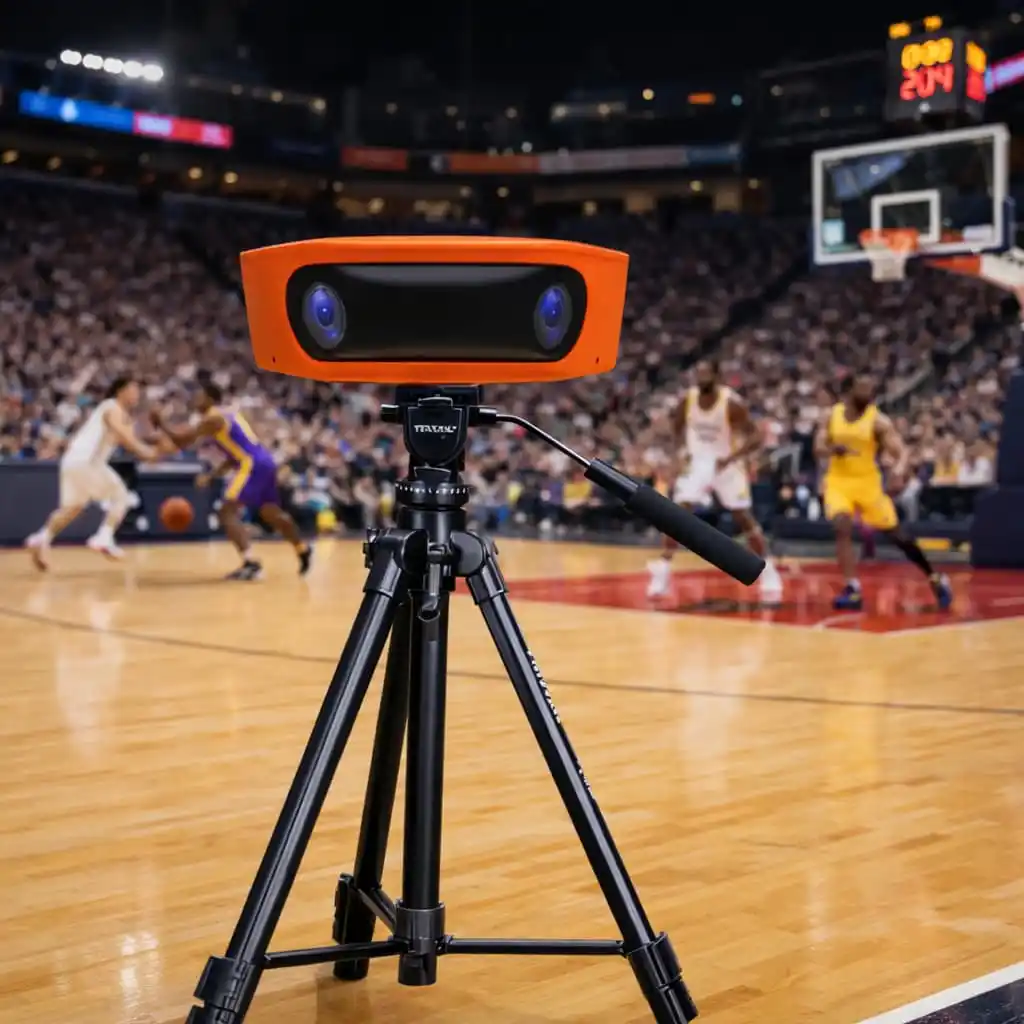
VisionPlay AI 180 Setup and Calibration: From Tripod to First Recording
VisionPlay works best when the venue setup is treated as a repeatable operating process. The current guide moves from stable mounting and device connection through preview and calibration before any recording or live stream is started.
Apollo NZ Global EditorialPublished 2026-09-09Practical project guide
Planning guidance — final product and site requirements are confirmed per project.
01
Mount and level the camera first
Secure the camera firmly to the tripod or approved support and make sure it is level. Position it so the playing area can be seen clearly; the simplified guide uses a near-centre-line starting position while the detailed manual gives sport-specific height/setback tables.
02
Connect through the app
Enable Bluetooth and Wi-Fi on the mobile device, grant the required app permissions, search for online devices by serial number and connect to obtain a real-time preview. The manual documents Android 10.0 and above for the supplied app guide and also provides an offline guest-control mode for emergency use.
03
Configure the network around the intended output
Wired Ethernet, Wi-Fi and 4G are documented network pathways. Live streaming needs external network access; recording can operate without it. Test the connection before an event if live output is part of the plan.
04
Preview, calibrate, select the sport and test
Check that the complete venue is visible, align the centreline and mark the required court or field reference points. After calibration, select the sport, finalise venue marking and run a test recording or livestream before the match begins.